Skygroup Guide

Record of Revisions
| REVISION NUMBER | EFFECTIVE DATE |
|---|---|
| REVISION 1.0.0 | 20 AUG 2022 |
1 - SKYGROUP GUIDE
This will be a guide through the webpages of Skygroup Virtual and provide information on our different features.
1.1 Dashboard
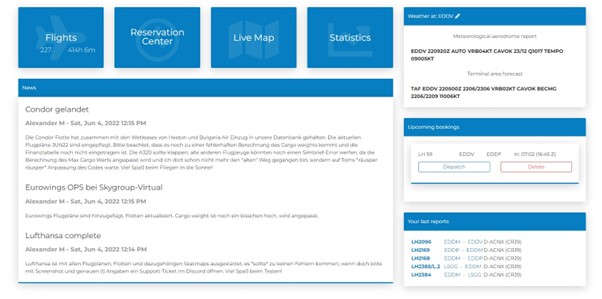
When you log in your Skygroup Virtual account, you are welcomed by your dashboard.
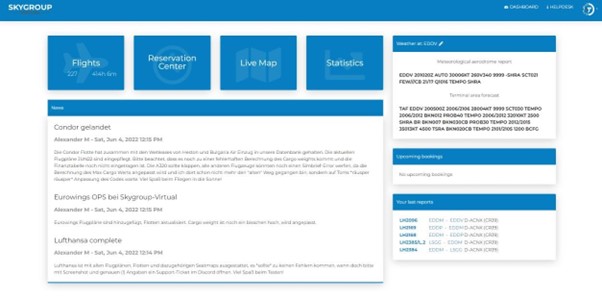
This is your homebase. Here you’ll find a few things. Let’s have a look.
1.1.1 News
The main part of the dashboard is reserved for new and important news on Skygroup Virtual, make sure to check back at times and see the latest news.
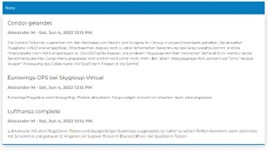
For now, you only see the latest three news, but in the future you will be able to scroll through every news that were ever published.
1.1.2 Weather
On the top right corner, you’ll find the weather information from the aerodrome you are currently at. You can see the METAR as well as the TAF and by clicking on the white pen you can enter any other 4 letter airport ICAO code (e.g., EDDM for Munich) and review the weather of that airport.
1.1.3 Upcoming bookings
Just below the weather widget you will find your upcoming bookings. Every booking you make will be visible here and you can dispatch your booking from this page directly or through the reservation center (which we will cover at the end of this document).
Okay. Let’s dive into the good stuff…

1.1.4 Flights
All your PIREPS (Pilot reports) will be saved under “Flights”, and you can review the details at any time by clicking on the flight number on the left side.
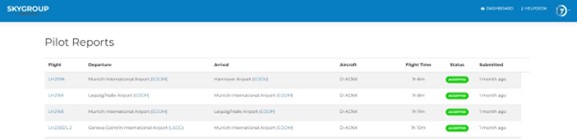
Additionally, your latest five reports can be accessed through the quick-access function “Your last reports” on the right side of the Dashboard.
1.1.5 Reservation Center
A click on the reservation center widget will bring you into our booking system. We will have a closer look later.
1.1.6 Live Map
The Live Map is a cool little feature that will show you all the current active flights flown by other pilots, but it will also show you the aircrafts flown by our own virtual airline AIpilots. (Note: The map is work in progress – when it’s finished you will be able to filter between real and AI pilots, airlines and more)
We’ve accomplished something that – as far as we know – no other virtual airline supports. We are trying to build a realistic economic environment and that means, that the profit of the airline comes from the quantity of the total flights. If the real Lufthansa Group would have just 20 flights a month, they would never be profitable. Even without all the costs for the ground staff that we are currently not simulating. So, we created a tool called the “live fleet” which moves our aircrafts according to our schedules and – in a future update – will also be connected to our finance system. Skygroup Virtual has a current and up-to-date fleet, we have every airframe that exists in the real world in our system – every registration can only be flown once at a time, and we created correct and real seat maps for every airframe. We are trying to simulate the airframe as accurately as possible – mostly limited by the amount of data that is accessible to the public.
1.1.7 Statistics
This will be our statistic center where you will find different statistics. Currently limited to flown flights but this will be improved and further extended over the time. (For example: financial status, maintenance, your landing rates and more)
Now let’s get to the main part of any virtual airline – the flying!
1.2 Booking
At Skygroup Virtual, you can choose from different airlines. We are currently supporting the following airlines: - Lufthansa - Eurowings (due to lack of available flight plan data currently without EWE and OCN) - Air Dolomiti - Swiss - Edelweiss - Austrian - Brussels - TUIfly - Condor - Lufthansa Cargo
(Note: You are included in the “closed beta program” – the available number of airlines and flight plans will vary)
Our flights are dispatched via SimBrief, but we have created own aircraft profiles and customized the SimBrief calculation to suit our needs and be more precise. For example: We calculate the average passenger weight with consideration of different weights of males, females, and infants with different baggage weights on different flights (e.g., holiday flights, business trips)
How to book a flight? It’s really simple. Just click on the “Reservation Center” widget and it will bring you into our reservation and booking center.
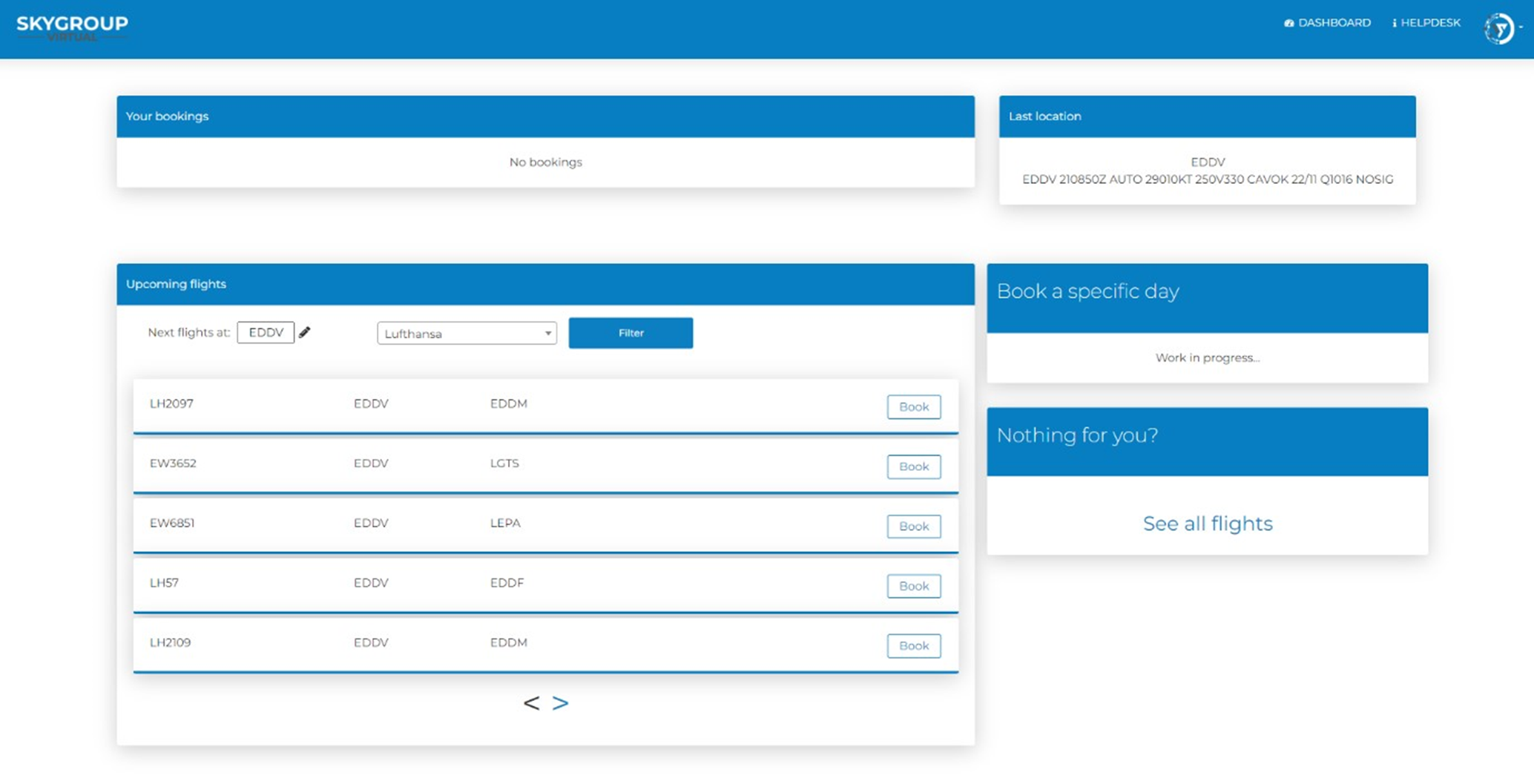
On the top you’ll see all your bookings and will be able to dispatch the booked flight(s). Your last location is shown on the right with the current METAR for your last destination. With Skygroup Virtual you have three different possibilities to book a flight: - book upcoming flight - book any flight - book a specific day
As a quick-access feature we implemented the “upcoming flights” widget below “Your bookings”. Filtered by airline you will be presented with the next five departing flights out of your last location.
(Note: The scheduled departure times are included with the flight plan data we buy and are not always correct to the real world. Due to the massive number of flights, we can’t modify each and every flight to the correct departure time according to the real world. Also, they change from time to time. This is a hit in the guts for us, as we like to simulate it as accurate as possible, but we depend on the data that is provided by us via a third party. This data, including the flight plans itself, are often not up to date and fairly expensive but it’s the only way we found to provide flight plans. (Maybe, when enough people show interest in helping out, we can keep the database up to date ourselves. We are able to modify every data to match the real world but it’s just too much data to cover it by us three people)
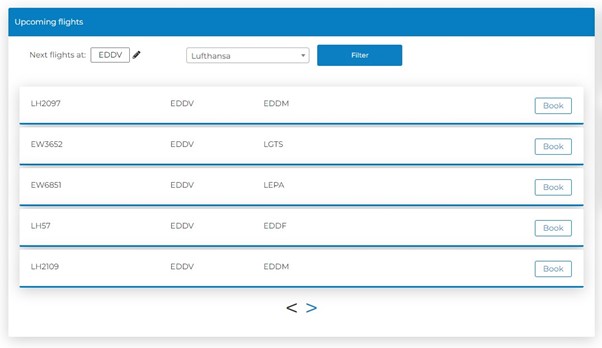
You can see the next five departures, by default its set to you last location. You can change it by typing any 4 letter ICAO code inside the “Next flights at” box and you will see the next five departures out of that airport. With the arrows below you can scroll through the list and see the next five departures and so on. To book you simply click on “book”. The second way is to see all flights and you will find this button on the right side of the reservation center.
When you click on “see all flights” you will be forwarded to this page:
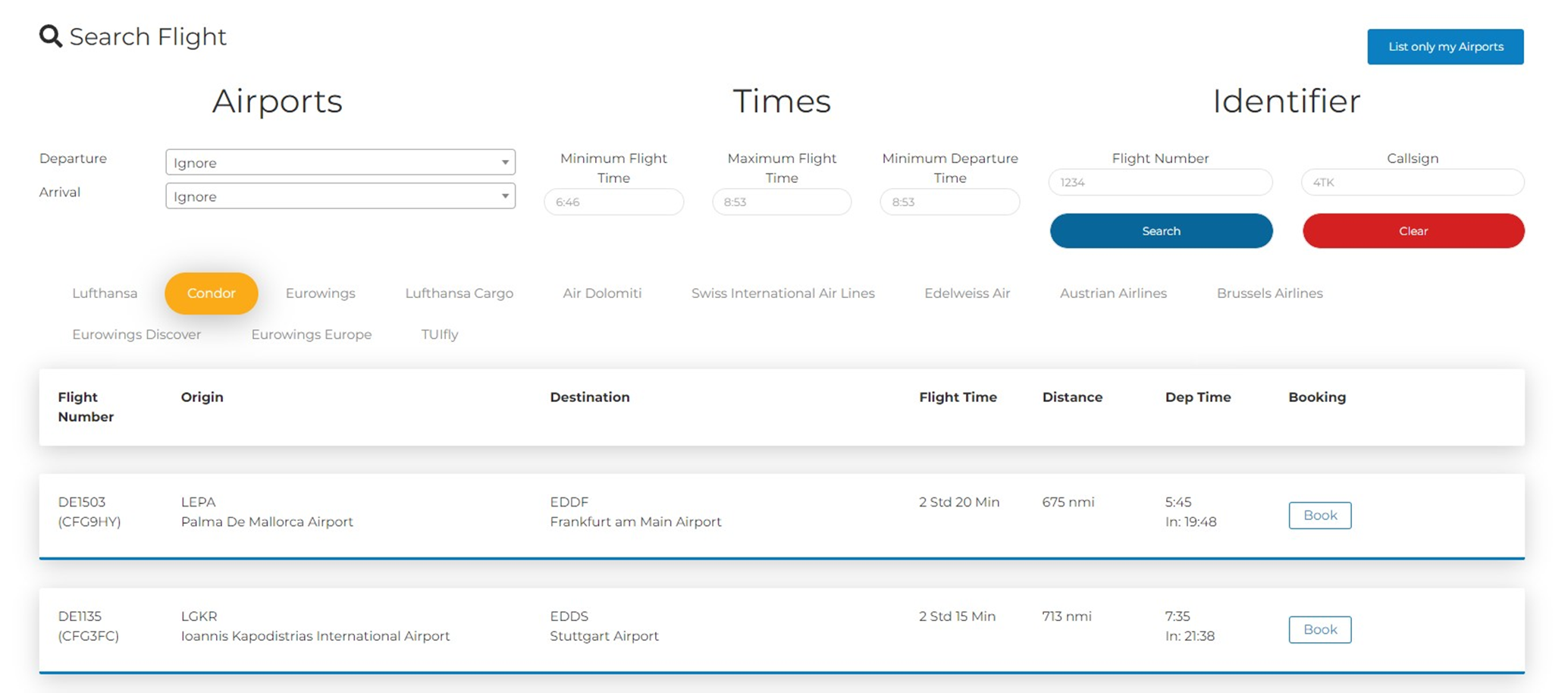
Here you can do a number of things. All of the described filters below can be mixed together as you like.
For every airline you can search and filter by: - specific departure airports, arrival airports, airport regions (e.g., ED* will show any departure/arrival airport in Germany – not available within the closed beta program) - Minimum / Maximum flight time - Minimum departure time - flight number (IATA) - callsign (ICAO)
Let’s make an example. You want to fly with Lufthansa and depart from your last location, you would like to see every arrival, but you only want to fly maximum 4 hours and not depart before 15:00z. This is what you would enter:

And that is the result:
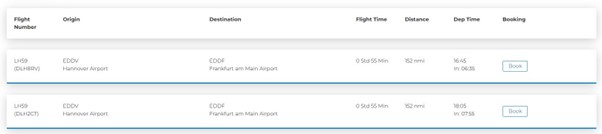
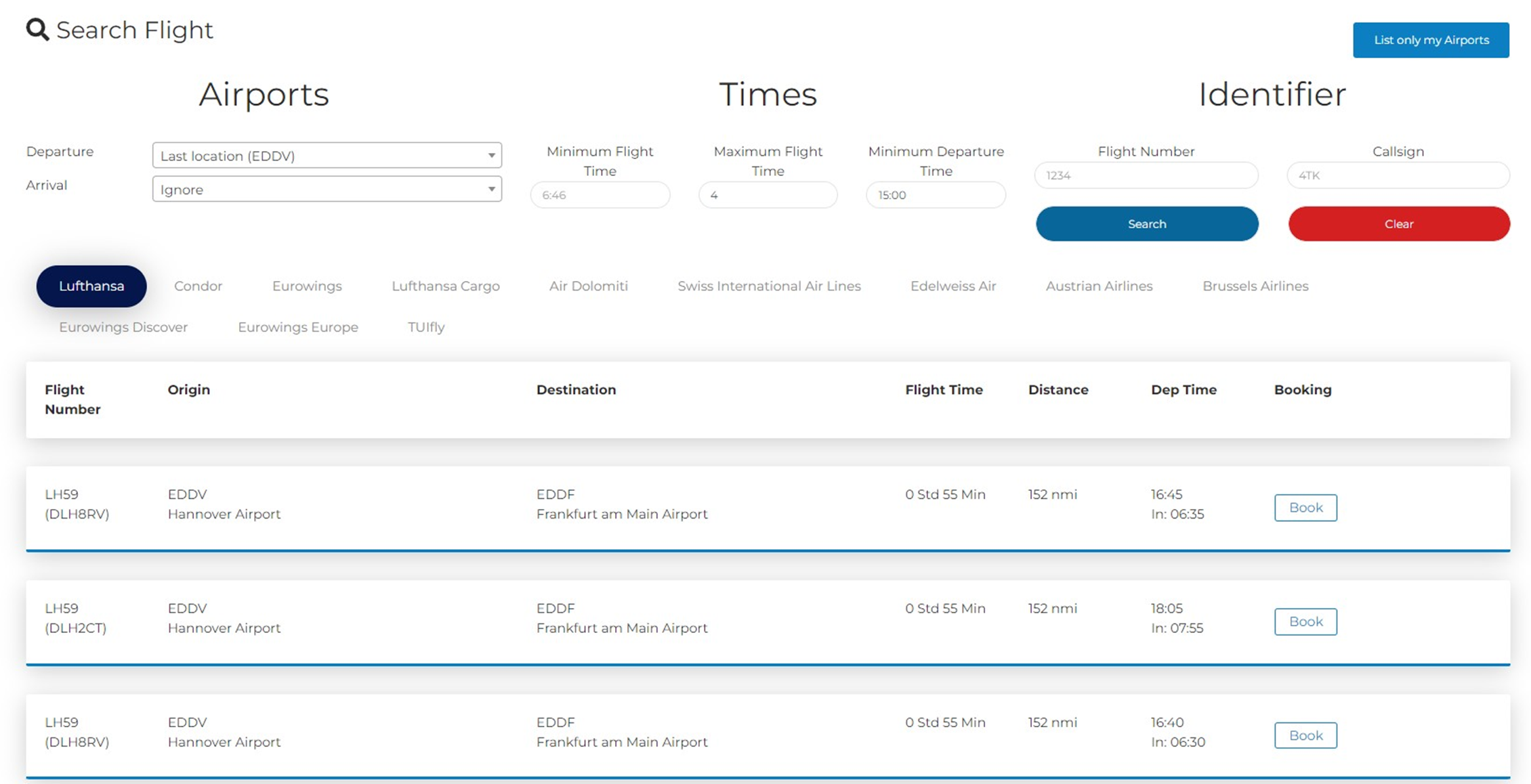
If you want to fly LH59/DLH8RV from EDDV to EDDF you click on “Book” on the right side. Thereafter you can select an aircraft type:
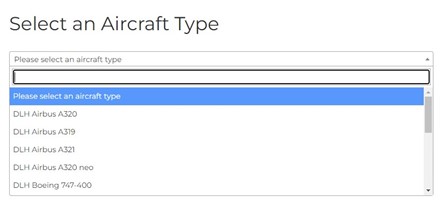
At Skygroup Virtual you can fly every airframe on every route, but we would encourage you to use the airframe used in the real world or an equivalent type of airframe. (You are limited to the fleet of the airline you chose. In the future you will be able to also use airframes of another airline if the flight is operated by another airline. (e.g., Lufthansa flight operated by Air Dolomiti aircraft)
Let’s say you want to fly this flight using the A320 of Lufthansa you select DLH Airbus A320 and this is what you will see:
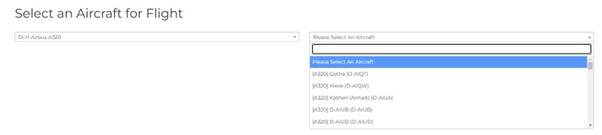
You need to choose a specific airframe for example the A320 named “Büdingen” D-AIZC. You search for this airframe by scrolling through the list or by entering the registration in the top field. After you made your selection click on “Book flight”
 The booking of the aircraft type and specific airframe is the same for all booking methods, so
if you clicked on “Book” at the LH2097 EDDV – EDDM shown in “Upcoming flights” you would
have been directly forwarded to the selection of the aircraft type and airframe as described
above.
The booking of the aircraft type and specific airframe is the same for all booking methods, so
if you clicked on “Book” at the LH2097 EDDV – EDDM shown in “Upcoming flights” you would
have been directly forwarded to the selection of the aircraft type and airframe as described
above.
After you completed your booking, you will be redirected back to the reservation center. You can make multiple bookings.
In a future update you will be able to book a specific airframe at a specific day. For example, you want to fly the Büdingen A320 on Monday, 8/22/2022 you could select and book it – so that no one else can book the Büdingen at that time. (Note: Booking in advance is limited to 4 flights within 30 days)
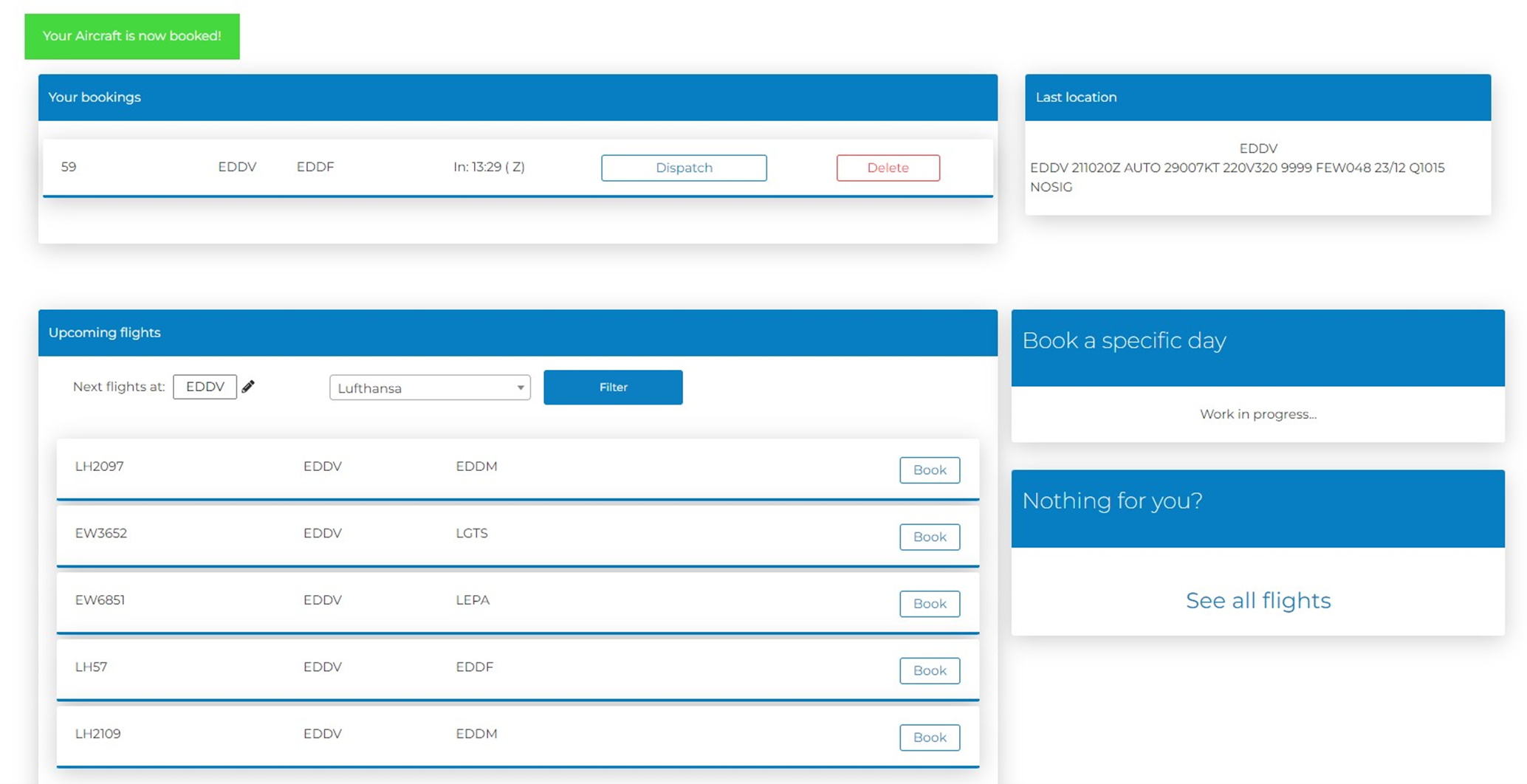
The next thing you need to do before getting onboard is to dispatch your flight. As you can see, your booked flight “LH57 EDDV – EDDF” is now ready for dispatch at “Your bookings” inside the reservation center. Here you can also delete your booked flight(s).
This can also be done via the quick-access function at your dashboard as described above. (Note: The times vary because I took the screenshots at a different time :D )
After you click on “Dispatch” either from your dashboard or the reservation center, it brings you to this page:
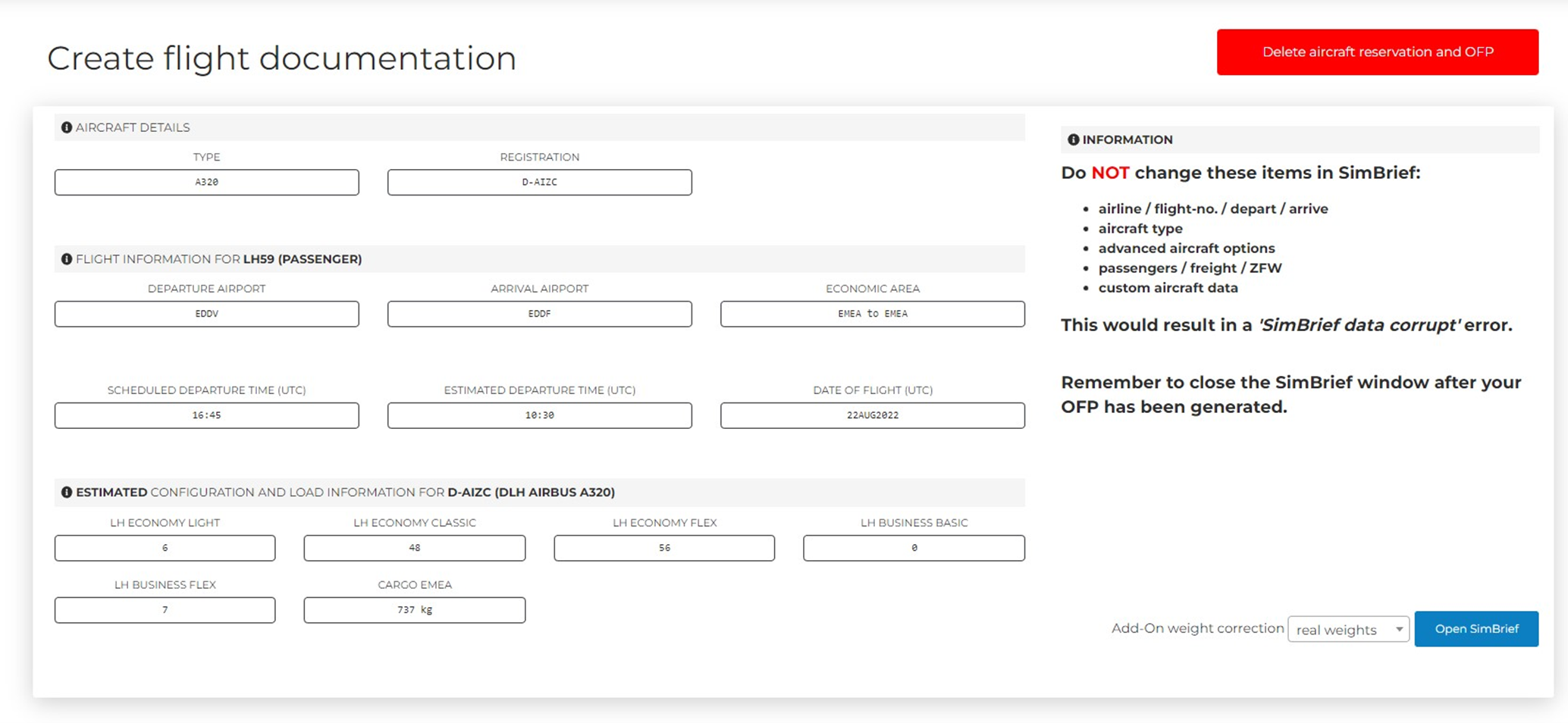
Here you can again delete your aircraft reservation and your OFP. (Note: After you booked a flight, the specific airframe you chose is blocked for any other pilot – so make sure to delete your reservation if your mind changes and you don’t want to fly anymore.) At this page you can review the details of your booked flight. You see the aircraft details (type and registration), details about your flight information. (Departure, arrival, scheduled departure time, estimated departure time and your date of flight) The most interesting thing here is the field “economic area” as you can see this is “EMEA to EMEA”. EMEA stands for Europe, Middle East, and Africa. The flight is from Germany to Germany, inside of EMEA boundaries. This is important for the cargo fares. Cargo transported from EMEA to APAC (Asia and PAcifiC) or AMER (North and South AMERica) is more expensive than within the EMEA economic area. Of course, this is not the exact case in the real world, but it is as close as we can get to create realistic and different cargo fares for our flight schedule.
Below the flight information you’ll find the estimated loading of your flight. We have currently 6 passengers in the LH economy light fare, 48 passengers in the LH economy classic ticket fare, 56 passengers bought a LH economy flex ticket, 0 people in the LH business basic fare and 7 people are sitting in the LH business flex fare. Also, we expect an EMEA cargo amount of 737 kilograms.
Yes – we created not only the seating areas Economy, Business and First where applicable, but we created for each and every airframe (not aircraft type – for the airframe!) a seat map according to the real-world aircraft configuration and also added the correct ticket fares of the airlines we simulate. If you would go to the booking page of this airline and you would enter the details you most likely could choose from those ticket fares.
Screenshots of the real-world booking page:
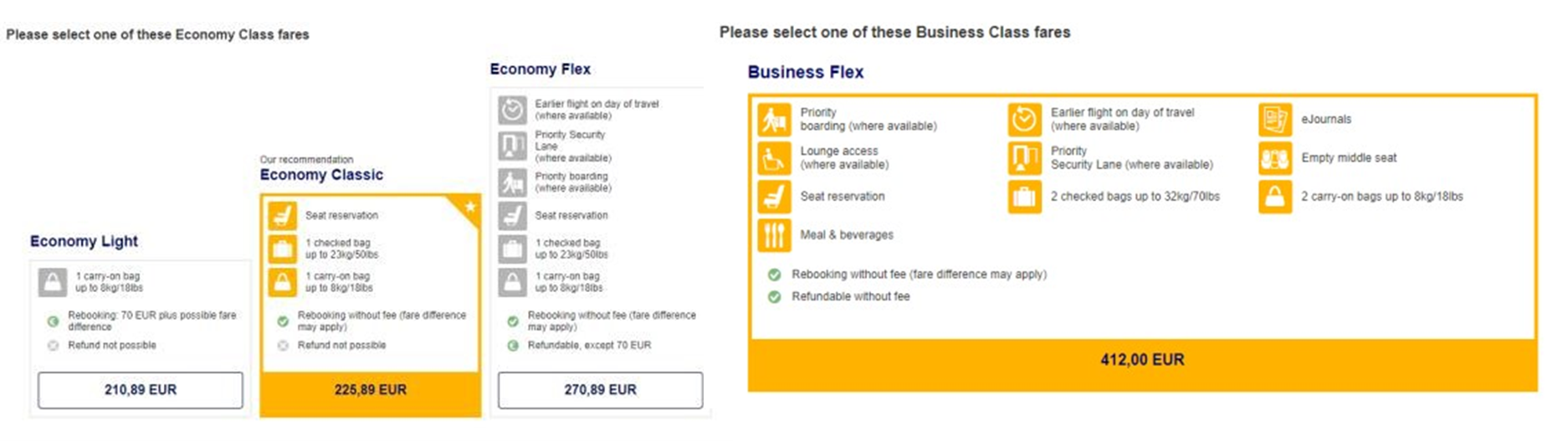
As you can see, in the real world there is no business basic fare on this flight and also we have 0 people simulated. But: The airlines change these fares from time to time on some routes and they are not always 100% correct, but we try to get as close as possible to the real deal.
Now, back to our flight documentation page, the only thing you can change at this page is the “Add-On weight correction” feature in the bottom right corner. This neat little feature is a heavy tool. Every add-on aircraft comes with a specific weight (DOW, MTOW limit and so on). Those values vary in the real world from airframe to airframe, not every DLH A320 has the same weight, but we can’t expect add-on creators to build every single airframe and sadly no addon creator has the weights made customizable yet (as well as the cabin layout, as you can imagine – not every airframe has the same cabin seat map as well). But if we get our hands on the real data for an airframe we edit the specific weights of the selected airframe (e.g.; if we would have access to the real weights of D-AIZC “Büdingen” A320 of Lufthansa we could implement those weights and our dispatch system and SimBrief would use these weights) but more importantly we can read the weights of the available add-on aircrafts and we make a custom weight profile for each add-on we get our hands on. For example: If you fly with the DAIZC (A320 WTF) using the livery for the FENIX A320 on MSFS2020 you would choose “Fenix A320” as add-on weight correction. The amount of available custom weight profiles will be constantly updated.
By default, the system will calculate with the real weights, if there are no specific weight information of the chosen airframe, the system will use generalized information of the selected aircraft type. (This goes for most features of our airline. We have created a default fallback database with generalized data which will be used by our system if there is no specific data available (e.g.; Performance based navigation information, transponder codes and much, much more).
We encourage you – if you have specific data or legal access to any – please share this information with us and we can create an even deeper immersion.
When you made your selection of which weight profile will be used you can click on the blue “Open SimBrief” button. This will bring you to the normal SimBrief page and you need to be logged in to your SimBrief account. As you can read as a reminder at your screen:
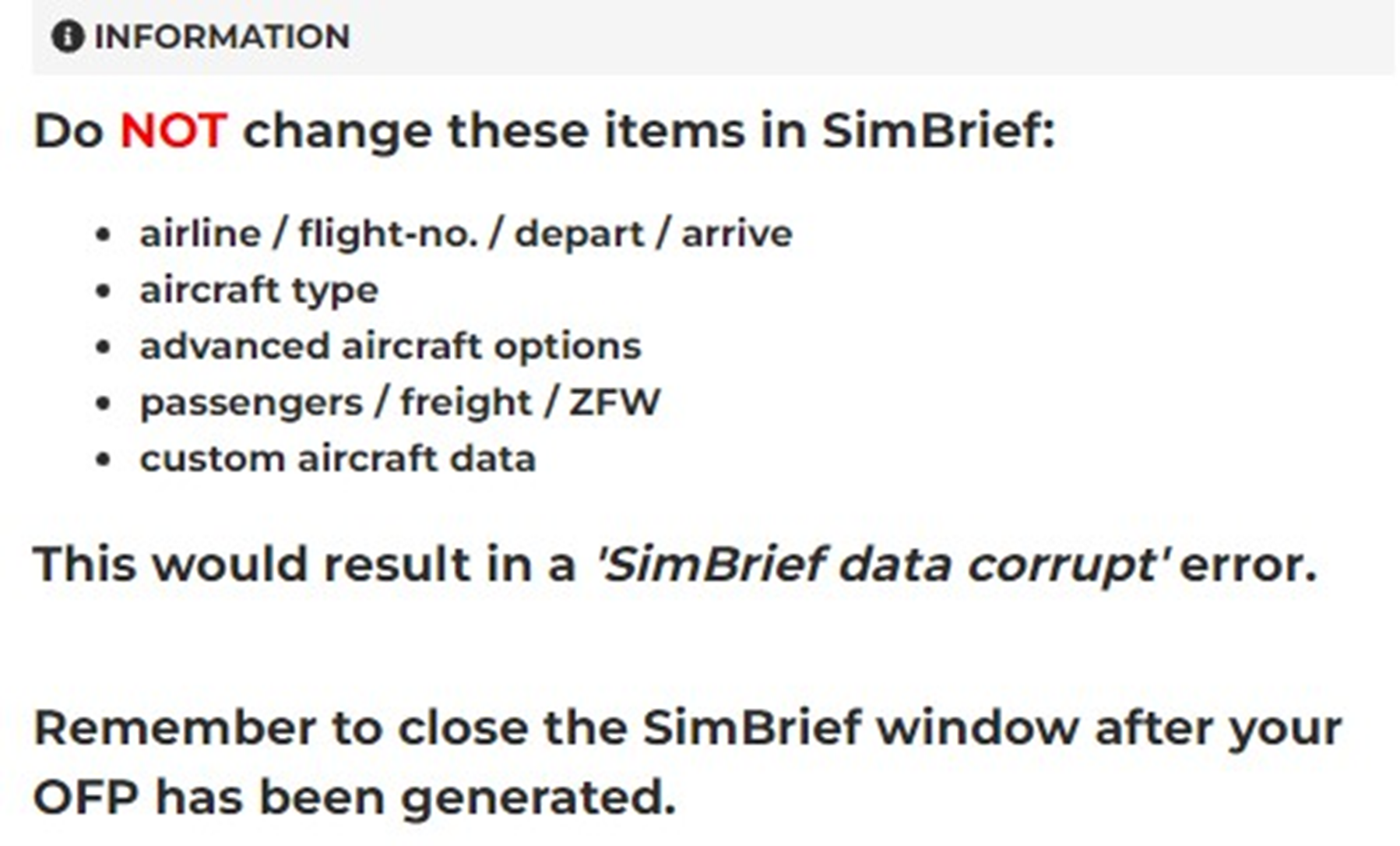
This is very important. You can change everything at your SimBrief page except the ones
stated above. If you change any of the mentioned values your flight plan cannot be calculated
by us, and you will receive an error!
But of course, you can change and edit your altitude, speeds and route data. Once you are happy with everything you click on “GENERATE FLIGHT” as you would normally when using SimBrief.
After SimBrief has processed your flight you need to close the SimBrief window. Just close it, our system will handle the rest. And after a few seconds, your window where you edited your weight profile information will become your dispatch sheet and look like this:
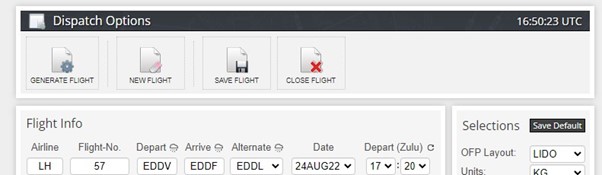
After SimBrief has processed your flight you need to close the SimBrief window. Just close it, our system will handle the rest. And after a few seconds, your window where you edited your weight profile information will become your dispatch sheet and look like this:
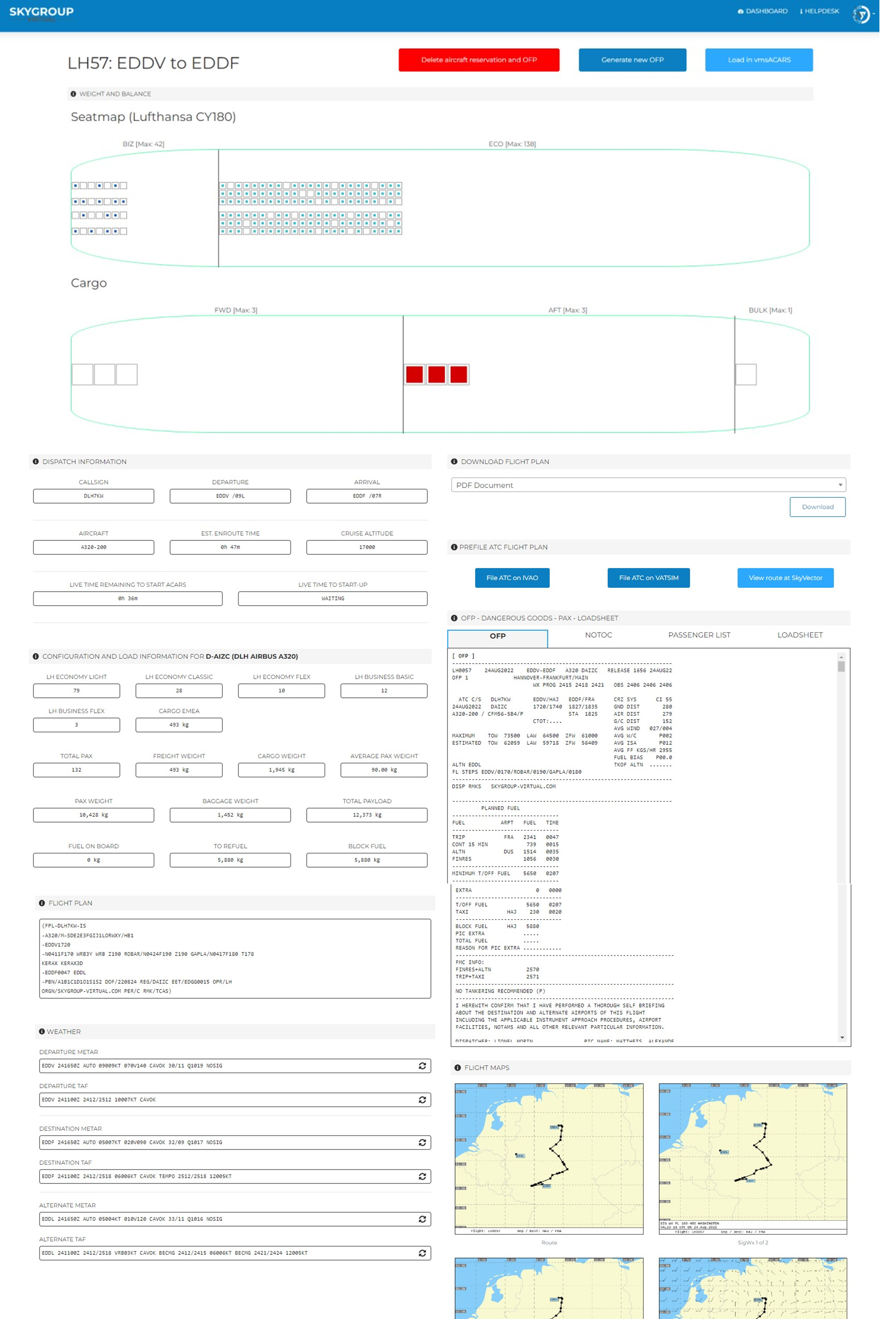
On this page you will find every information that you will need during your flight. Starting at the top you have three pretty self-explanatory buttons:

“Delete aircraft reservation and OFP” is the same button as we have seen before at the “create flight documentation” page – it will delete your aircraft reservation and your generated OFP (simple, huh?)
“Generate new OFP” will ….. generate a new OFP. (Fascinating, right?)
“Load in vmsACARS” will start you ACARS that you have installed on your PC. There is no need to manually execute the .exe from your desktop prior flying. You book and dispatch your flight as described above, start up your simulator, load at your gate and click on “Load in vmsACARS” this will start up your ACARS system. (We will cover how to use the ACARS at the end of this document)
Below that you will find detailed information about the booked seats in your flight. The shown seat map is custom made and – even if the graphic is not as detailed as the real one, the seats are exactly placed as in the real aircraft, with very few exceptions.
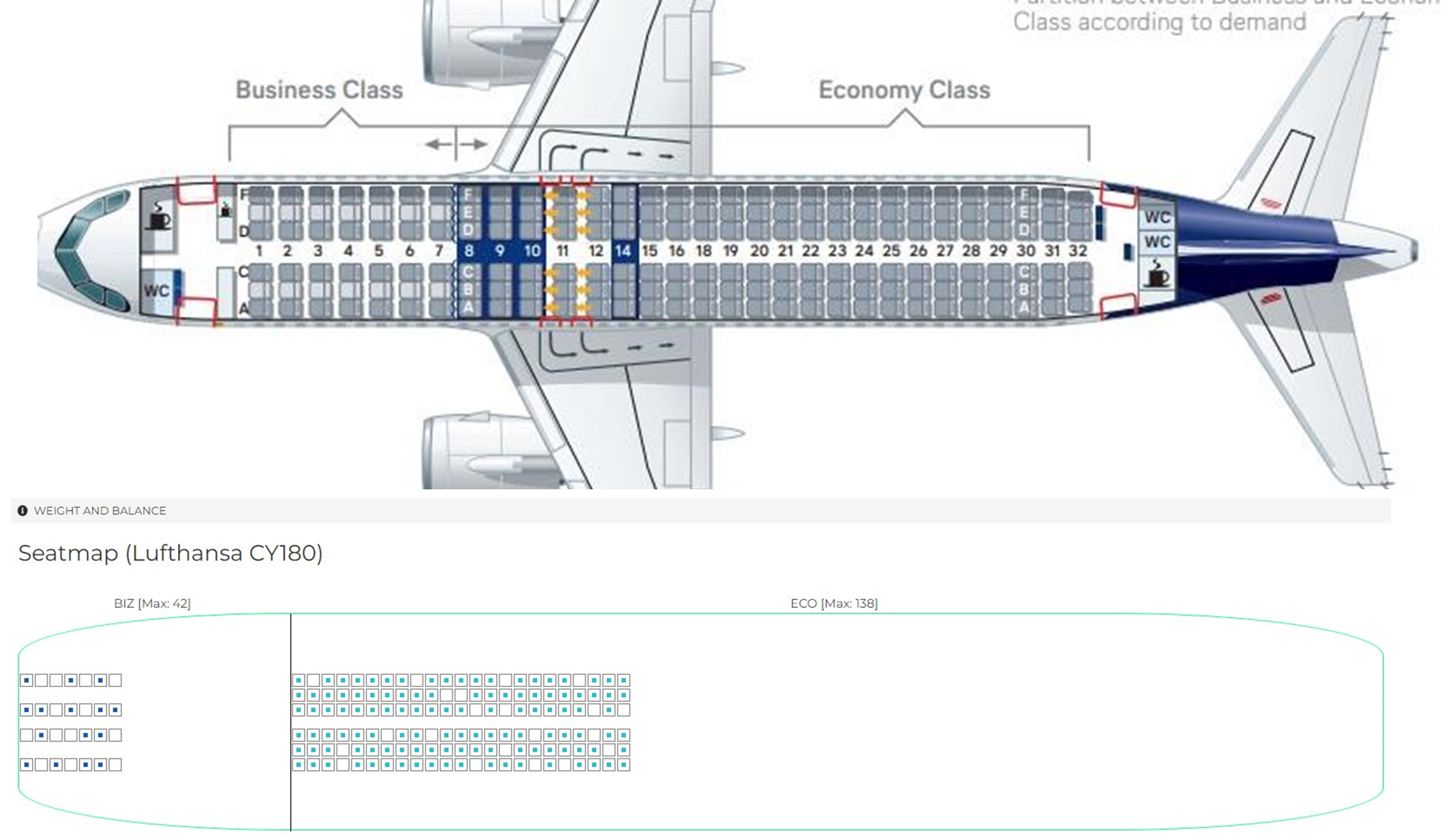
You can see that there are 7 business class rows, which are defined by a free middle seat in Lufthansa short haul aircrafts. In our seat map that is represented by space between the business class seats. Thereafter you will find 23 economy class rows, as you can see in our seat map as well.
Note: We already talked about ticket fare classes. Our system takes the available seats in one seating area, for example economy class and search for the available ticket fares for this seating area. In our case that would be “LH economy light”, “LH economy basic”, “LH economy flex”. It then places the passengers in the individual seat categories, considering that normally more people are buying the cheaper ticket.
Below the seat map you can download your flight plan in various formats, but normally that shouldn’t be necessary. If you are flying online you can prefile your flight plan for both, IVAO and VATSIM. Other networks are currently not supported but may be added at some point. You can also review your routing via SkyVector.
Note: When prefiling your flight plan you are able to enter detailed information about the airframe you are using. For example, equipment codes (what equipment is installed in the airframe), PBN (performance-based navigation) information, SELCAL codes, aircraft hex codes and so on. All this is correctly filled out by our system in most cases, it may be something small and not many people will notice it, but it is the real deal. You can also manually add or edit your supplementary flight plan information, but we recommend leaving it like it is unless you have more detailed information about the real airframe – in that case, please share your knowledge with us. Also: In order to be able to be recognized as a VA by VATSIM, you are obligated to add skygroup-virtual.com to your flight plan, this is done by our system automatically inside the “ORGN” field of your flight plan.
The only thing that may change in real life from flight to flight is the RMK section, due to different requirements in certain countries / overfly regulations. That is so individual, that we are currently not able to simulate that correctly.
Below the prefile buttons you will see your SimBrief OFP as you know it, but you can change the view to “NOTOC, PASSENGER LIST and LOADSHEET” as well. Not all of them are implemented just yet but they will come in an update.
“NOTOC” stands for “Notification to Captain” and contains information regarding dangerous goods on board. We will simulate that in a later update.
“Passenger list” will show you the name, age, and sex of every passenger on your flight, with the correct seat number corresponding with your seat map seen above (currently under development). Already finished is the fact, that our passengers have different weights (males, females, infants) and they change dynamically.
“Loadsheet” is currently also unavailable, and more information will be released later on. On the left side of your dispatch sheet, you will find the dispatch information containing your callsign, departure, arrival, estimated enroute time, planned cruise altitude and two timers. Those are important.
The first one is called “Live time remaining to start ACARS” and it will count down for 1h. You need to start ACARS within one hour of dispatching your flight, otherwise your aircraft reservation and your OFP will be deleted, to give other pilots a chance to fly with the registration. Once you started ACARS, you have another timer called “Live time to start up” and it will count down for 2h. After you have started ACARS you need to get moving within the next two hours, otherwise your aircraft reservation and your OFP will be deleted. Make sure to dispatch (not book!) your flight when you are ready to fly.
Below the dispatch information you will find information regarding your configuration and loading for your dispatched airframe. The passenger numbers seen on the screen before were estimated passenger numbers, the numbers you have at the dispatch sheet are the actual numbers. A few things are notable here. At first the “Average pax weight”, as I said before our passenger weight is dynamically calculated and every add-on calculates with average weights, sometimes you can change the average weight at your add-on, then we recommend setting this value as shown at your dispatch sheet. (In this case 90kg). The FBW aircraft can read the average weight on its own and sets it automatically. Currently it’s only possible for the Fly-by-Wire A32NX for MSFS, but if made available by other developers, it will be included in our VA.
The next thing to notice is the “to refuel” field. Our system remembers with what fuel in tanks the airframe arrived at its last destination either of you or another pilot (or in a later update also the virtual AI pilots of our VA) and shows you the value at “fuel on board”. You may set this value before starting ACARS in your add-on aircraft and then refuel the amount as shown in “to refuel” to match the number in the “block fuel” field.
Below that you have the ATC flight plan copied from your SimBrief OFP for a quick-access and below that you’ll find weather information. The weather can be updated throughout your flight by clicking on the circled arrows on the right side.

You have both METAR and TAF available for your departure, destination and alternate.
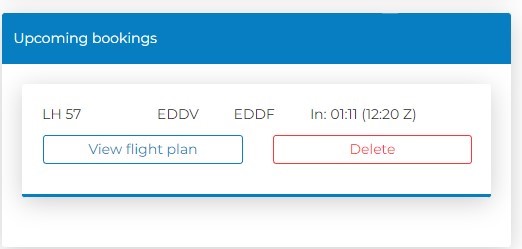
As you can see, all the information you need to complete your flight can be found at this page, so we recommend keeping this page open during your flight. If you close it accidently you can re-open it via the reservation center or through the quick-access feature “Upcoming bookings” from your dashboard. It will read “View flight plan”.
This concludes the most interesting features found at your dispatch sheet.
Now it is time to start your ACARS and complete your flight LH57/DLH7KW from EDDV (Hannover) to EDDF (Frankfurt)
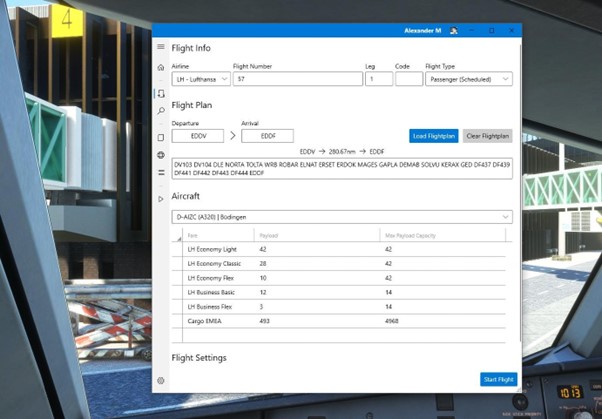
After you click on “Load in vmsACARS” your ACARS will start and load the correct flight as described above. To start your flight, simply click on “Start Flight” on the bottom right corner.
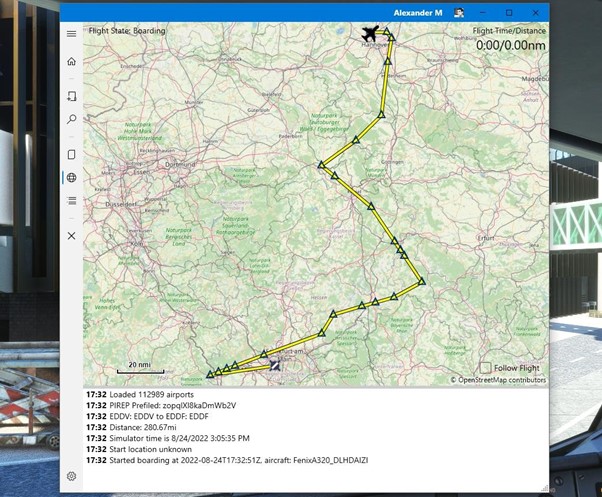
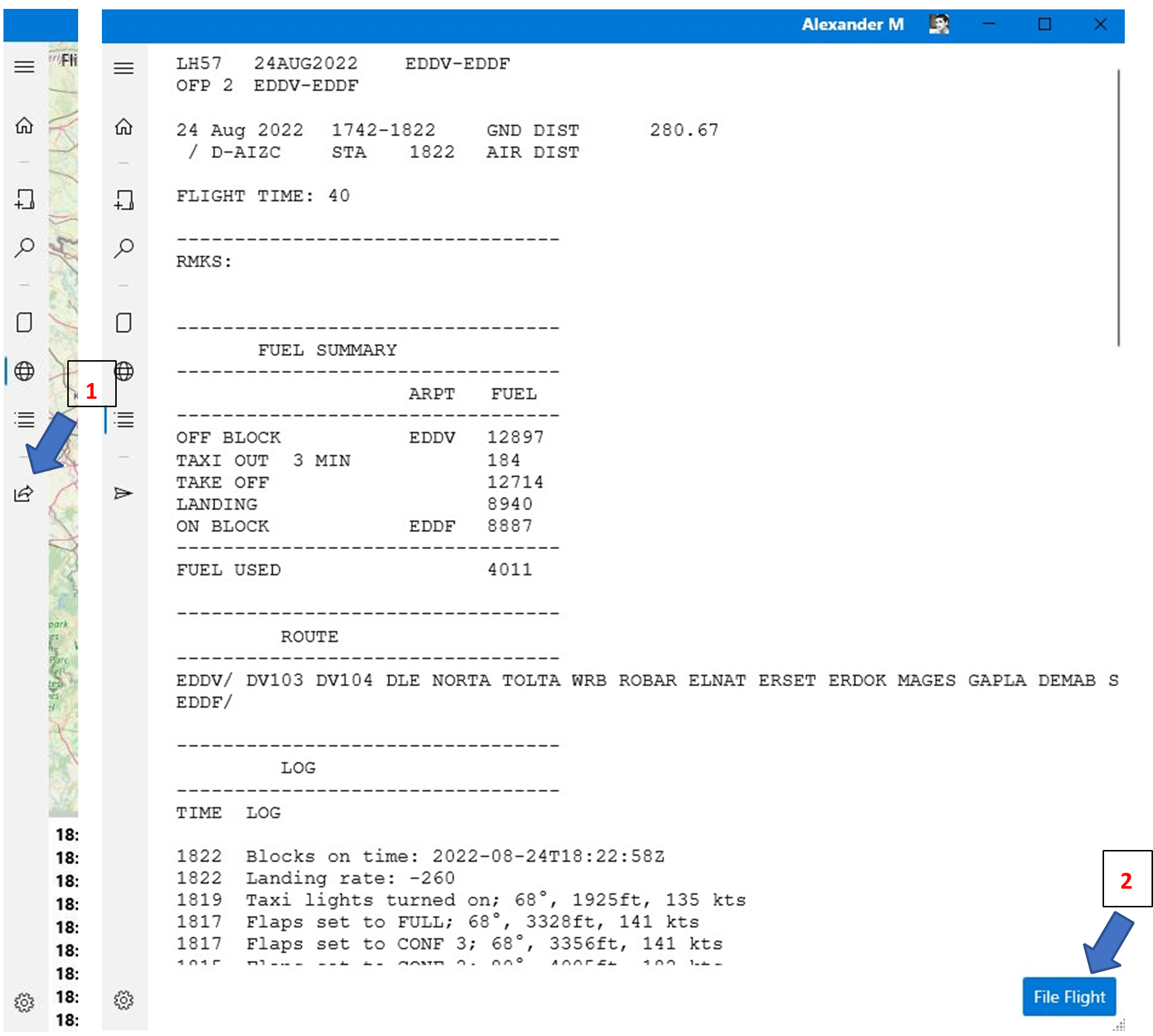
This is what your ACARS will look like in-flight. If you want to stop your flight, you can click on the X on the left side of the program – this will end your flight. Once you complete your flight and set your parking brake, the icon will change into an arrow, and you will be able file your PIREP at Skygroup Virtual. As you can see above, I chose FenixA320_DLHDAIZI – booked was D-AIZC. It is not necessary (but of course cool) to use the booked livery, as there is not every registration painted. For the sake of our virtual economy, please refrain from using the same registration over and over again. Just like in reality – choose different ones, always a great resource is www.flightradar24.com to check which registration operates on your route and then choose the one that is used in real life, even if you don’t have the livery installed.
You don’t need any other buttons inside ACARS. Don’t use them as this would result in an error message.
This concludes this guide – if you have any further questions, please don’t hesitate to ask them via our primary communication source Discord: https://discord.gg/cyEDDNuZ7N
Our little virtual airline project got bigger and bigger, and this is also the reason why the release was postponed over and over again. But we are proud to present you a deep immersion like this and we are certain that Skygroup-Virtual offers everything to suit your needs in flight simulation and bends the boundaries currently known of virtual airline capabilities.
Enjoy using our virtual airline – and if you can and like, you are very welcome to help make it even bigger and better. Every data that you can legally obtain and share with us helps us to develop this virtual airline with a deeper immersion experience even further. Our goal is to get as close as possible to the real deal.
Thank you for your attention and enjoy your flights.
Always three greens and happy landings.
20 AUG 2022